

Menu → Shortcuts → Triple Tap
Add The Shortcut
Tap Add Shortcut and Maple adds a ready-made shortcut called Quick Add To Maple to your Shortcuts library. It asks How Much? and What For?, then logs it.
Get The Shortcut (Needs Maple Budget 1.6.2)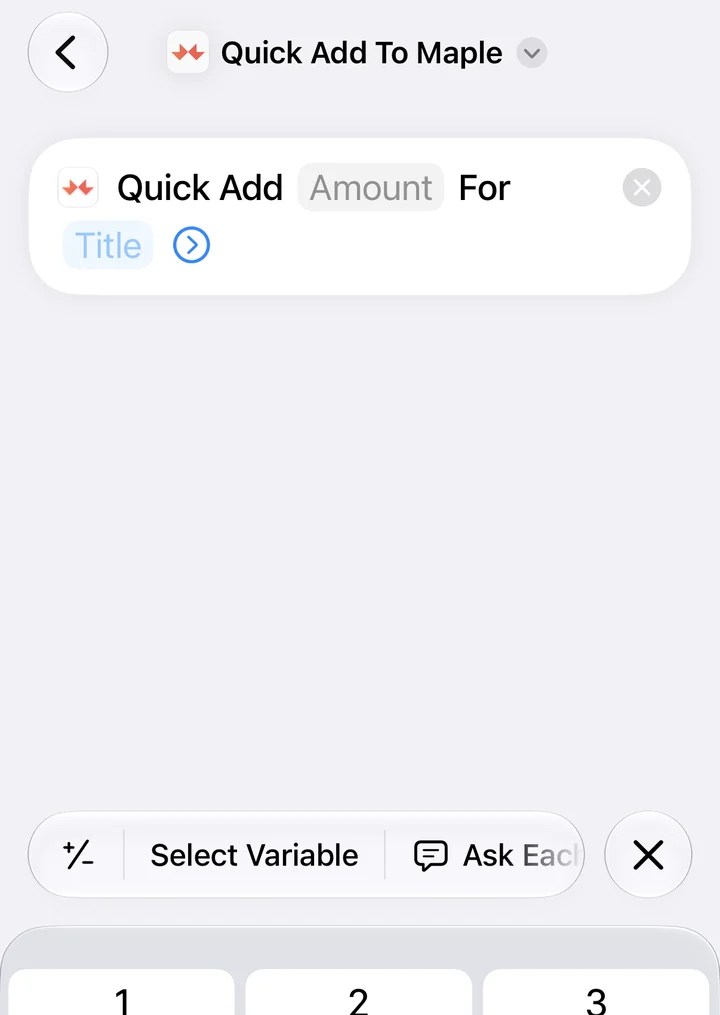
iPhone Shortcuts · New In Version 1.6.2
Tap to pay with your iPhone or Apple Watch and Maple Budget logs it for you: the amount, the store, the card and the right category. No typing, no bank connection, no account key to copy.
How It Works
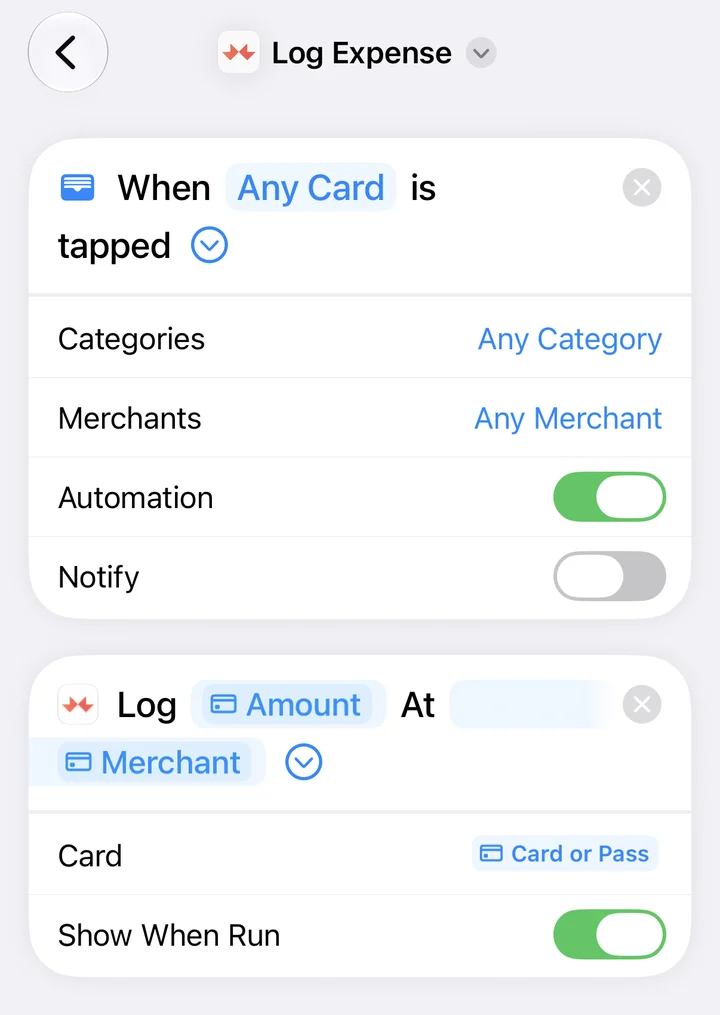
Maple Budget 1.6.2 adds two built-in actions to the iPhone Shortcuts app, Log Expense and Quick Add. They use your Maple sign-in, so they just work.
Every time you pay with Apple Pay, iOS hands the purchase to Maple the moment you tap. It shows up in your transactions right away.
Maple checks, in order, until one fits:
The card you tapped is matched to your payment methods in Maple, so you can see what went on which card. Canadian credit and debit cards work too.
Set Up · Apple Pay Automation
Maple builds the shortcut for you, Wallet trigger included. You add it, check one switch and pay.
Menu → Shortcuts → Apple Pay Automation
In Maple, open the Apple Pay Automation page and tap Add Shortcut. The Shortcuts app opens with Log Expense ready to go. Tap Add Shortcut again and it's yours.
Get The Shortcut (Needs Maple Budget 1.6.2)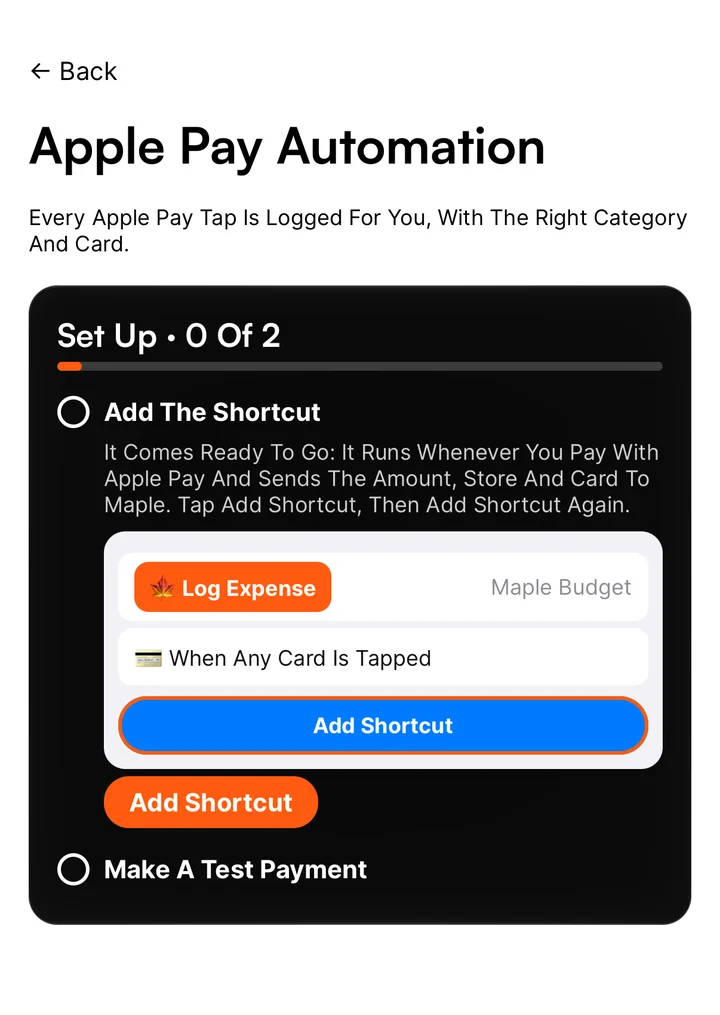
Shortcuts App → Log Expense
Open Log Expense in Shortcuts. On iOS 27 the trigger lives right inside it: When Any Card Is Tapped, with an Automation switch. Leave it on. Then buy something with Apple Pay and a confirmation tells you what Maple logged.
Set Up · Triple Tap
Back Tap turns the back of your iPhone into a button. Tap it three times from anywhere, enter the amount and what it was for, done. Great for cash, e-transfers and anything Apple Pay can't see.
Menu → Shortcuts → Triple Tap
Tap Add Shortcut and Maple adds a ready-made shortcut called Quick Add To Maple to your Shortcuts library. It asks How Much? and What For?, then logs it.
Get The Shortcut (Needs Maple Budget 1.6.2)iPhone Settings
Back Tap lives in Accessibility. Pick Triple Tap, then choose Quick Add To Maple under Shortcuts. Try it once and you're set.
Shortcuts
Also On Your iPhone
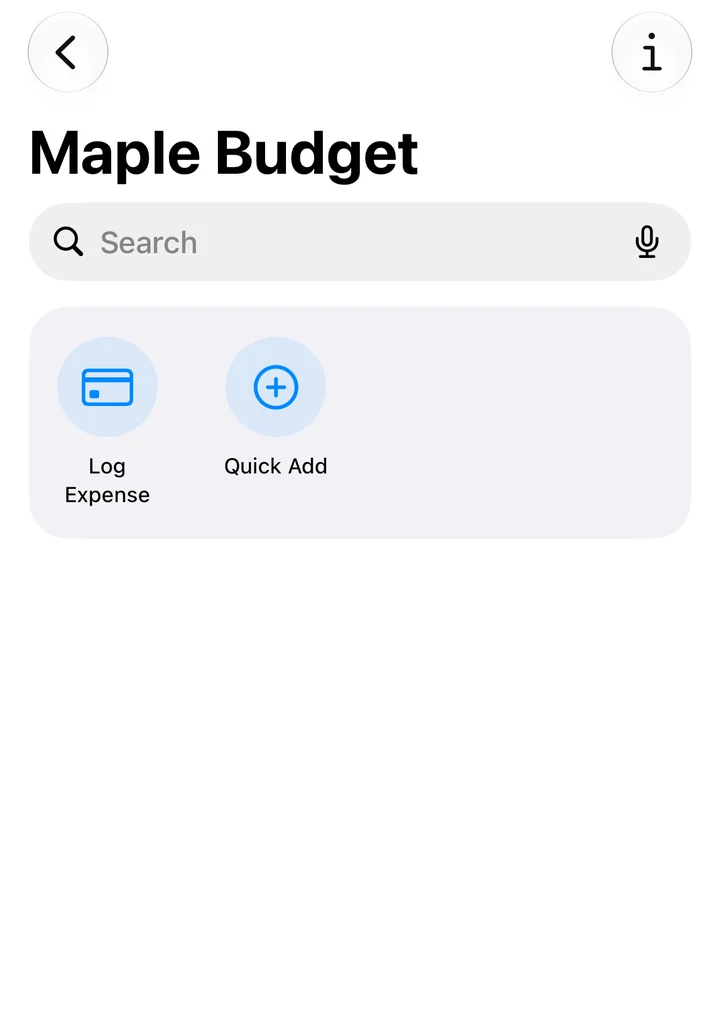
Log Expense and Quick Add show up anywhere iPhone shortcuts do. Say "Quick Add To Maple" to Siri, search for it in Spotlight, or put it on the Action Button for one press logging.
Requirements
The shortcut only sends Maple what you would type in yourself: the amount, the store name and the name of the card you tapped. Never your card number. It uses your normal Maple sign-in, so there is no account key to copy or paste anywhere, and Maple never connects to your bank.
Yes. Paying with Apple Pay on your Apple Watch runs the same automation on your paired iPhone, so the purchase is logged just like a tap with your phone.
Then it won’t log. The shortcut needs a connection to reach Maple at the moment you pay, and it doesn’t queue purchases for later. If you pay somewhere without signal, add that one by hand or with a Triple Tap once you’re back online.
Your own rules come first, then what you picked for that store before, then a list of known merchants, then AI. If nothing fits, it lands in Miscellaneous so nothing is lost. Change it anytime and Maple remembers next time.
Yes. Any card you can add to Apple Wallet works, including Canadian credit and debit cards. Maple matches the card name to the payment methods you set up in the app. Maple Budget is made in Toronto and works in CAD, USD, GBP and EUR.
The Apple Pay automation needs iOS 17 or later. We built and tested it on iOS 27, where the automation lives right inside the shortcut, next to an Automation switch.
Not for this. Shortcuts, Back Tap and Apple Pay automations are iPhone features. Maple Budget itself works on Android and the web, where you log purchases by hand.
No. Shortcuts are part of the free Maple Budget app. Maple Finance, the optional investing side, is the only paid part.

Get Maple Budget for iPhone, free, and let Apple Pay fill in your budget.