

Add A Transaction
Log a purchase or a paycheque in Maple Budget in a few taps. Pick a category, type the amount, add tags or a payment method, and save.
Paste it into ChatGPT or Claude to ask questions about it.
Updated View As Markdown
Every transaction in Maple Budget has a category, a title and an amount. Tags, a payment method and a shared expense are optional. Once it’s saved, it counts toward that category’s budget for the month.
Before You Start
- Download Maple Budget on iPhone or Android, or open the web app. It’s free.
- Sign in. The same account works on every device.
On iPhone
1. Tap The Purple +
The purple + sits in the middle of the tab bar at the bottom of the screen. It works from any tab.
2. Pick A Category
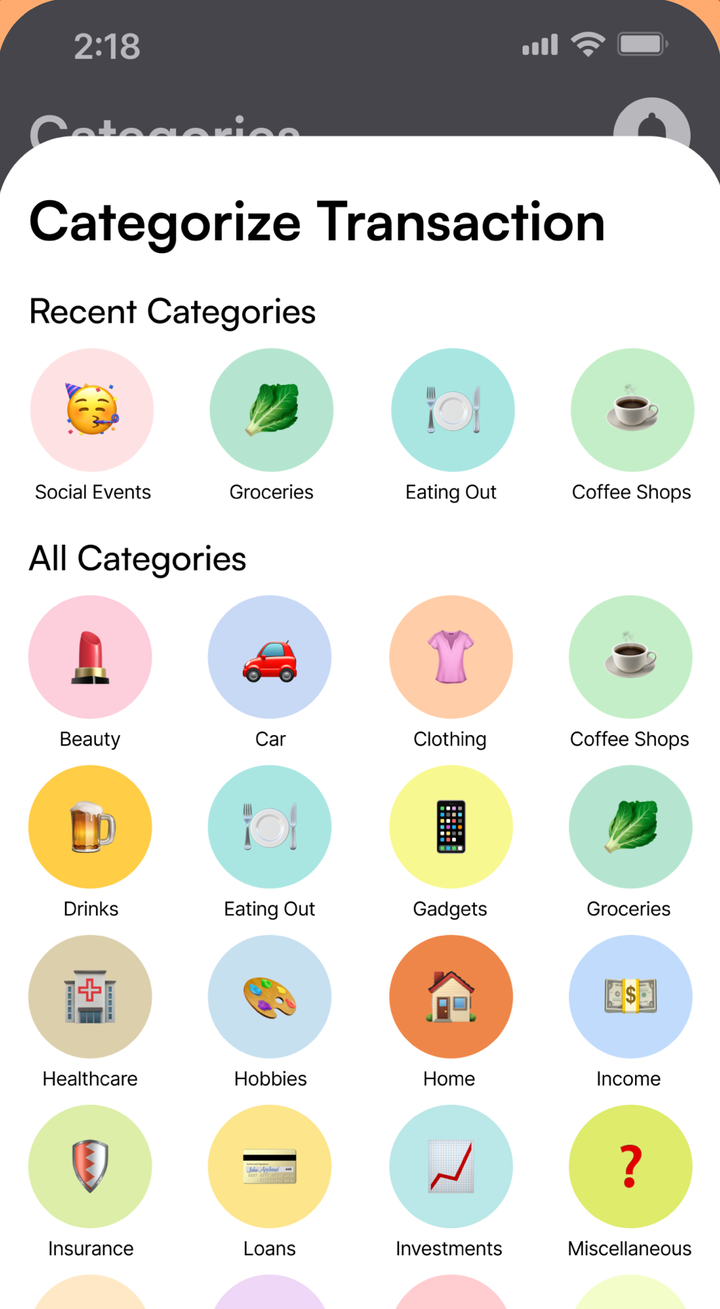
The Categorize Transaction sheet opens first. Your Recent Categories are at the top. Income Sources holds the Income category, and All Categories has the rest.
3. Type A Title And The Amount
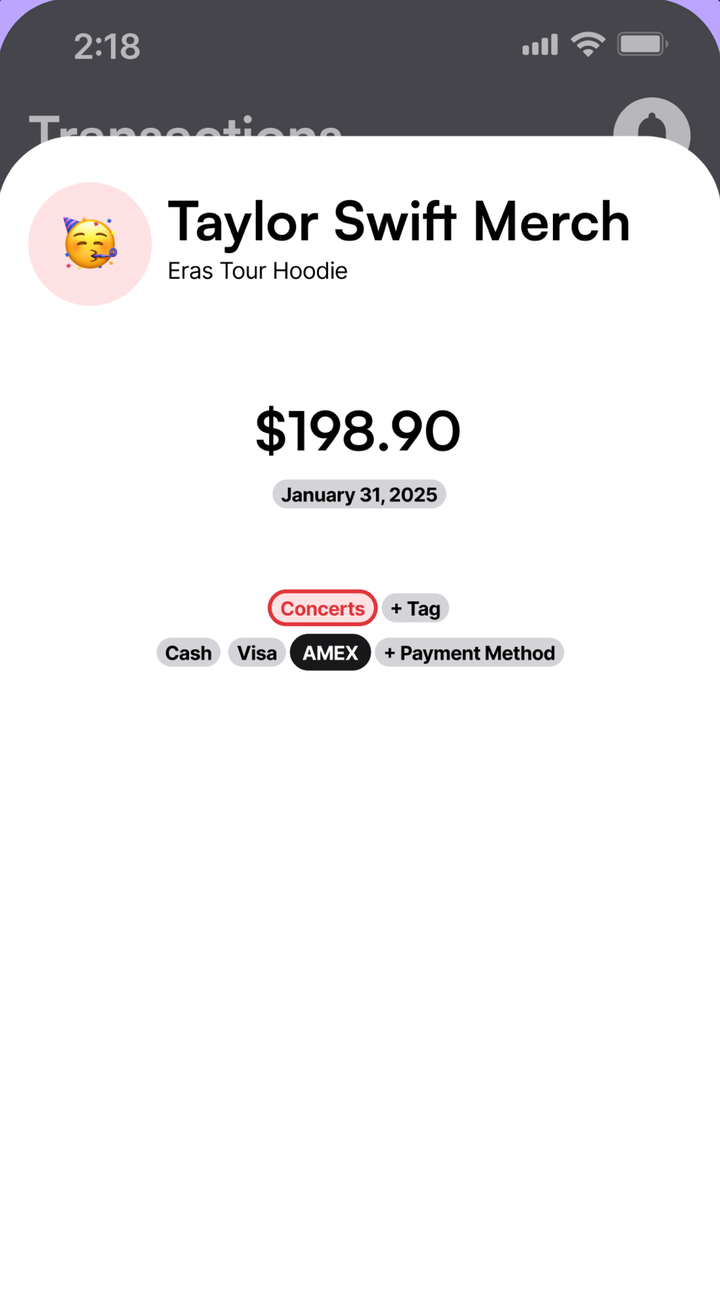
Give it a title, like the store name. The note line under it is optional. Type the amount in the $0.00 field.
The date starts as today. Tap the date pill to pick another day from the calendar.
4. Add Tags, A Payment Method Or A Split
These are all optional.
- Tap a tag pill to add it, or + Tag to make a new one. Tags belong to the category you picked.
- Tap a payment method, or + Payment Form to add one, like Visa or Cash.
- If you’ve connected with someone in Shared Expenses, tap their name to split the cost.
5. Tap Add Transaction
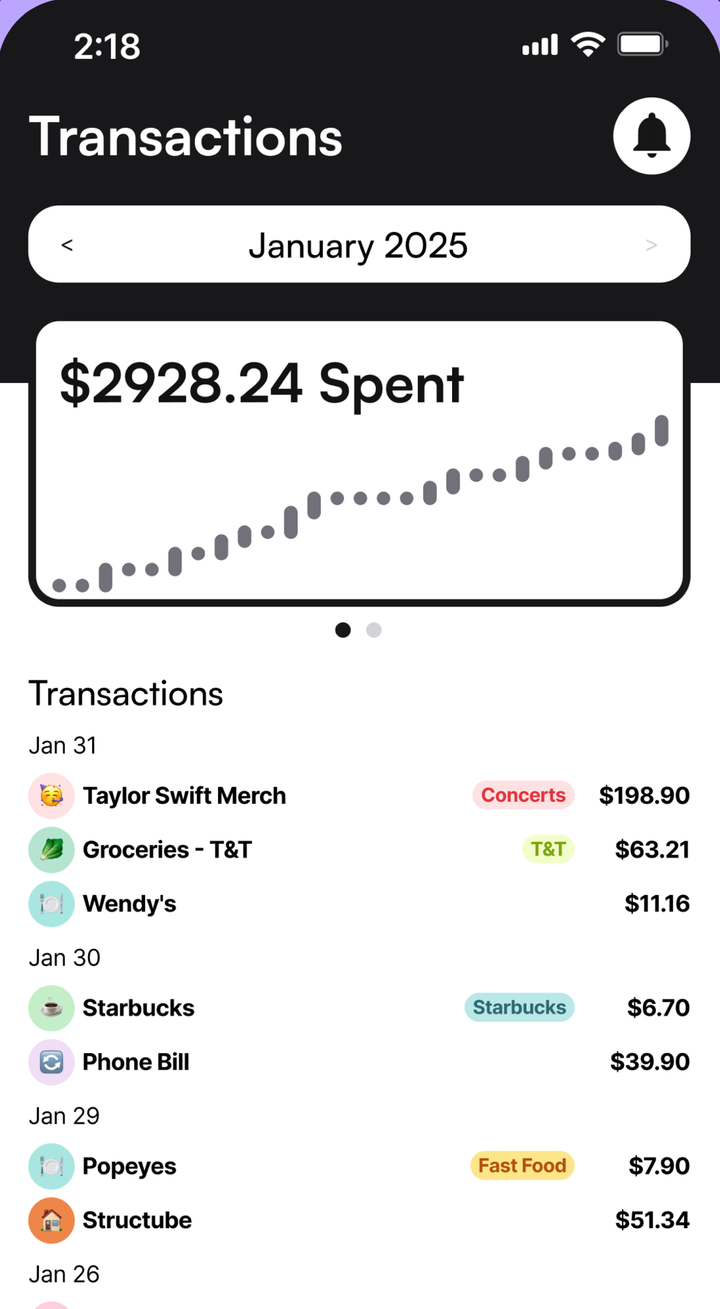
Tap Add Transaction at the bottom. You’ll see “Transaction added successfully.” and the purchase shows up on Home and in Transactions.
If something is missing, Maple tells you which field. The title, category and amount are required.
6. Edit Or Delete It Later
Tap any transaction to open it again. Change what you need and tap Update Transaction. To remove it, tap Delete Transaction. It’s deleted right away, with no second question.
On Android
The steps are the same as on iPhone. One difference: the + Shared Expense pill on the add form doesn’t open an invite on Android. To connect with someone, go to Menu, then Shared Expenses, then Invite Someone.
On The Web
- Click Add Transaction in the sidebar. On a phone-sized browser, it’s the purple +.
- Pick a category under Pick a Category.
- Type a title, an amount and an optional note. Click the date pill to change the day.
- Add tags with + Tag, a payment method with + Payment, or a split with + Shared Expense.
- Click Add Transaction.
To edit, click the transaction, change it and click Update Transaction. On the web, right-click a tag or payment method pill to rename it.
Tips
- Paid for something on a regular schedule, like rent? Tap the repeat icon next to Add Transaction to make it recurring.
- Have a month of purchases to catch up on? Import a bank statement instead of typing each one.
Common Questions
How Do I Log Income Instead Of Spending?
Pick the Income category. It sits under Income Sources when you choose a category. There's no separate income switch.
Can I Change A Transaction After I Save It?
Yes. Tap the transaction anywhere you see it, change what you need and tap Update Transaction. The button stays grey until something changes.
Does Deleting A Transaction Ask Me First?
No. Delete Transaction removes it right away and you'll see a short confirmation. Double check before you tap it.
Do I Have To Type Every Purchase?
No. On iPhone, the Apple Pay shortcut logs card purchases for you. With Maple Pro you can connect your bank and your spending comes in on its own.
Try It In Maple Budget
Budgeting is free on iPhone, Android and the web. One account works everywhere.